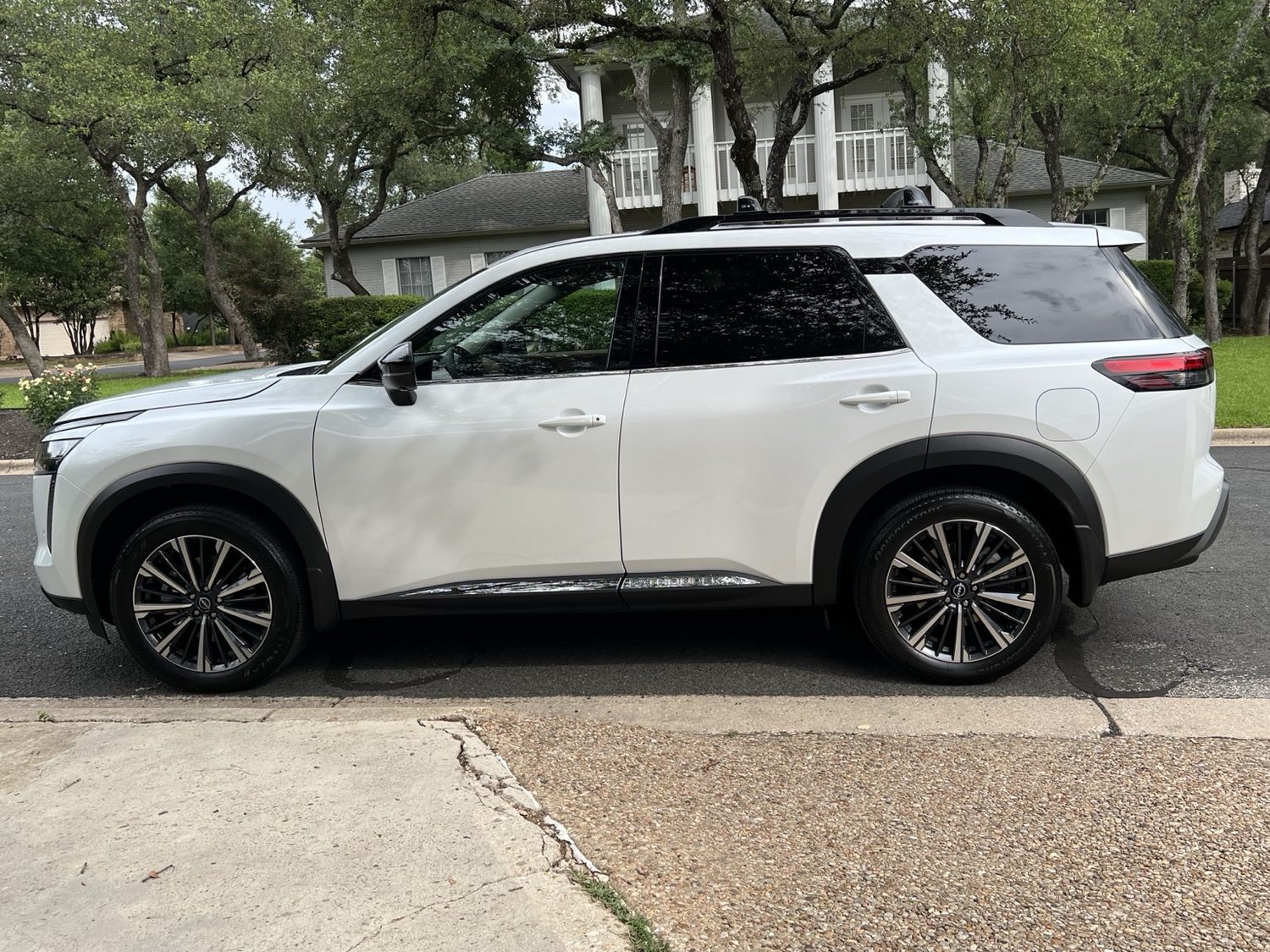
- Keep the Intelligent Key in your purse or pocket.
- Set the seat, mirrors, and steering wheel where you want them.
- Lower the seat belt and head restraint to the "small person" setting.
- Pair your phone and confirm calls, audio, and maps.
- Set climate to AUTO, pick a temperature, and use SYNC if you want everyone to get the same weather.
- Find the CAMERA button before you try any advanced parking maneuvers.
01 / Start here
First 10 minutes
Do this once while you're parked, and the Pathfinder becomes a lot less mysterious. Future-you, already late and holding coffee, will be grateful.
Three habits worth keeping
Hands stay on the wheel with driver assist. Eyes stay outside even when cameras are on. Wheels stay away from curbs.
Drive mode
Use Standard for normal life. Sport is peppier. Eco is softer. Snow is for slippery roads.
Safety assists
Keep emergency braking, blind spot, rear cross traffic, and parking aids enabled unless you are escaping a crowd of zombie children.
Auto Hold
Great in traffic, driveways, and drive-throughs. Turn it off for car washes, garages, or delicate creeping.
02 / Getting in
Key, locks, remote start, liftgate
You know how this works. The key can mostly live in your bag. The car knows when you're close.
Normal use
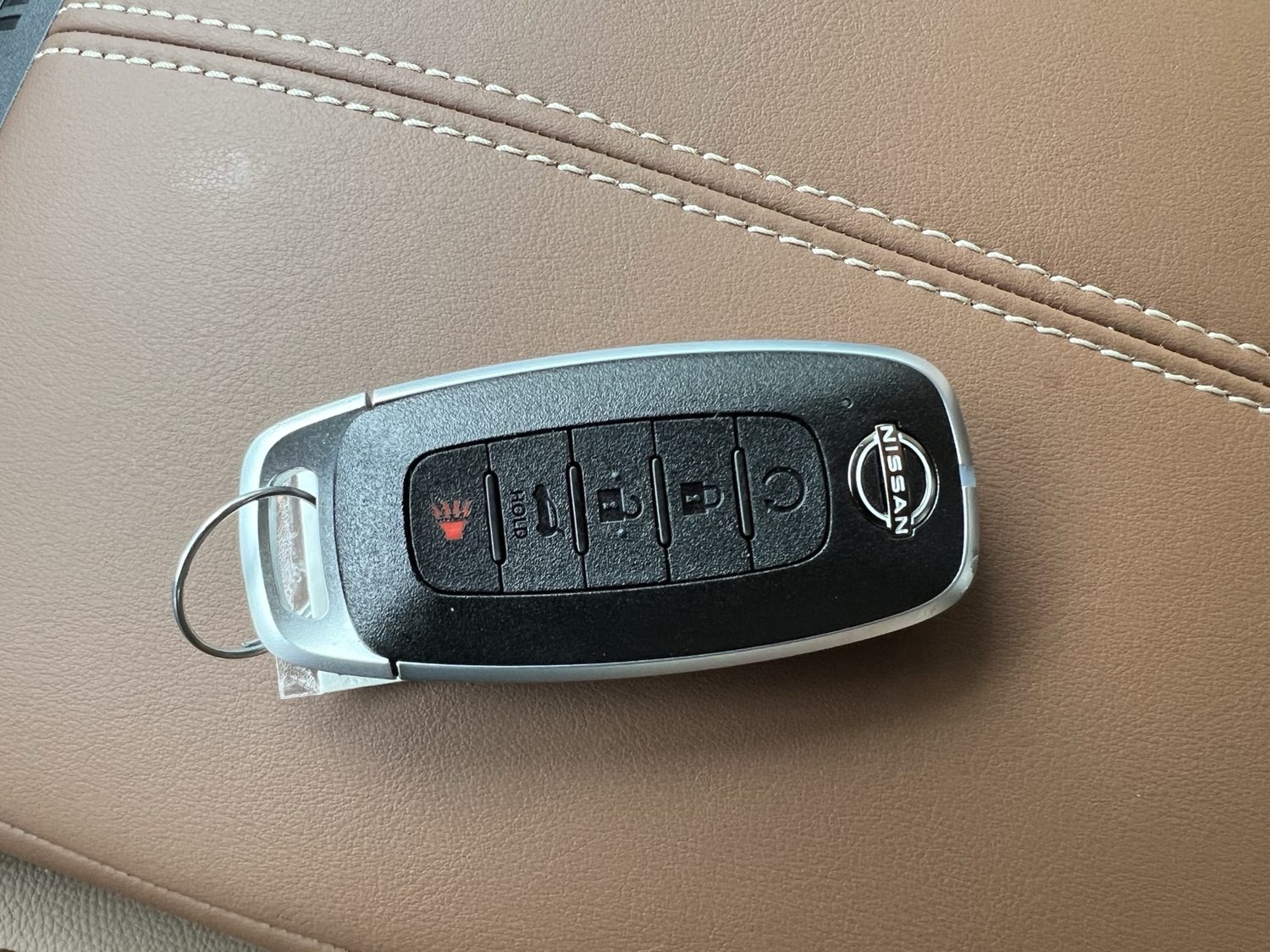
Cool thing is that any of the doors can be unlocked by touch with the fob nearby. Tap the button on the handle again to unlock all doors. Hold the liftgate button on the fob when your hands are full enough to be dramatic. Hold it again to close the back.
Remote start
Press Lock first, then hold the remote start button for 2 seconds. This gets your heat or A/C blastin'. After you get in, press the brake and ignition button once before shifting out of Park.
Hot tip
Hold down the unlock button to crack all of the windows on a hot day, if you don't want to remote-start the engine (and A/C) yet for whatever reason.
Open it from several places
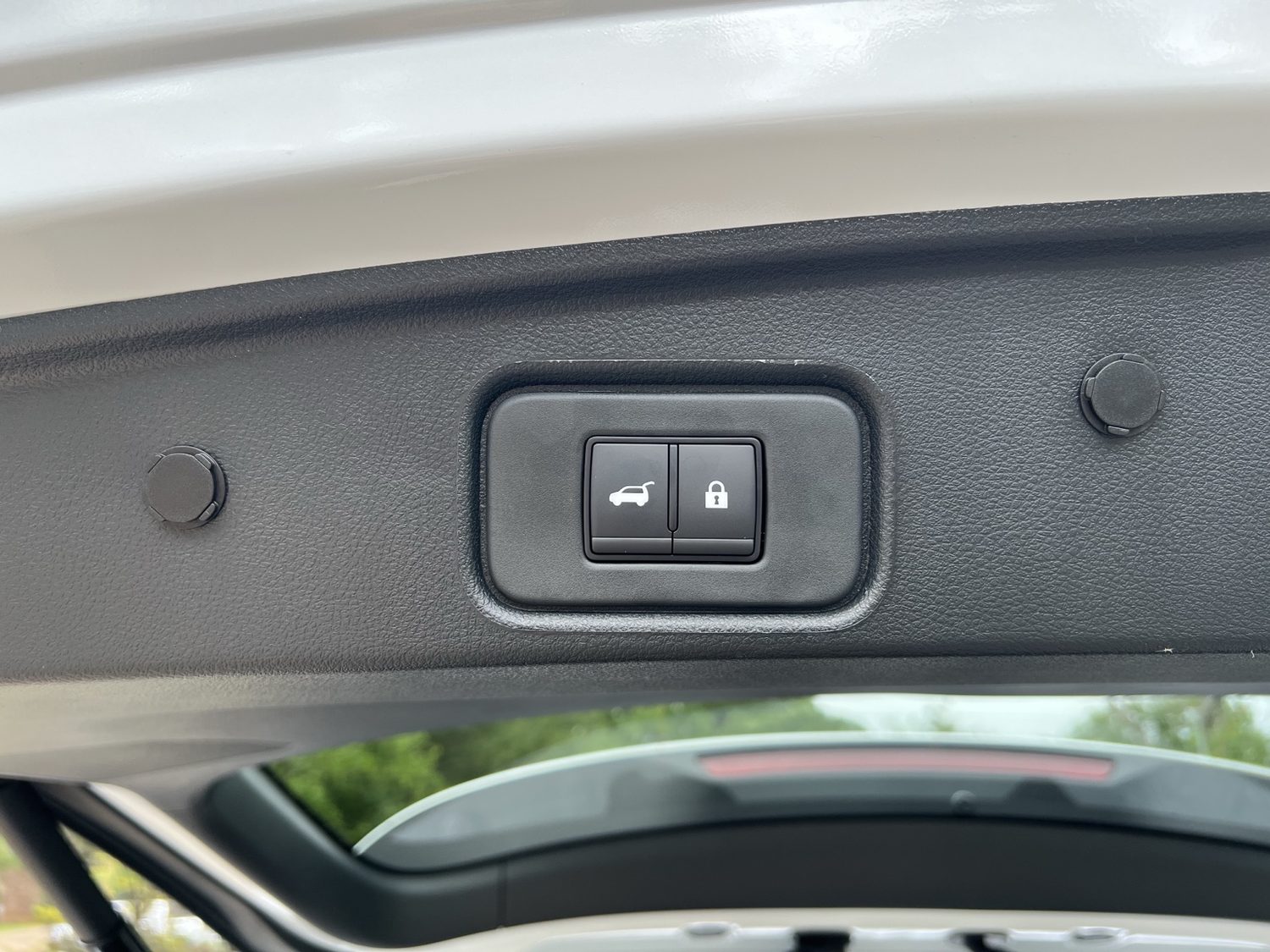
Use the fob, dash switch, exterior hatch switch, or liftgate buttons. The close-and-lock button, pictured here, is the magic unloading-at-home move: press it, step away with the key, and let the hatch close and lock.
Supporting Dwarf Accessibility
Note that I already set it to a lower opening height. If you want it lower, just pull it down with your hand and then hold down the close button until it beeps a lot.
Garage note
Before using the power liftgate indoors, make sure it clears the garage door, opener arm, shelves, bikes, and whatever else has been promoted to ceiling decor.
Just kidding, you'll never fit this in the garage.
03 / Moving the thing
Start, shift, park
The basics are easy, but the electronic shifter is a little different than other cars. So, you know, just take a moment to see how it works.
- Press the brake and push the ignition button to start.
- Use the shifter motion shown on the console for Reverse, Neutral, and Drive/Manual.
- Press the P button on top of the shifter for Park.
- Set the parking brake when parked on a slope (like your driveway) or whenever you want extra certainty.
Paddles and D/M
Manual mode is useful for hills, temporary engine braking, or more responsive control. You'll never use it. For your purposes, Drive is still the correct answer.
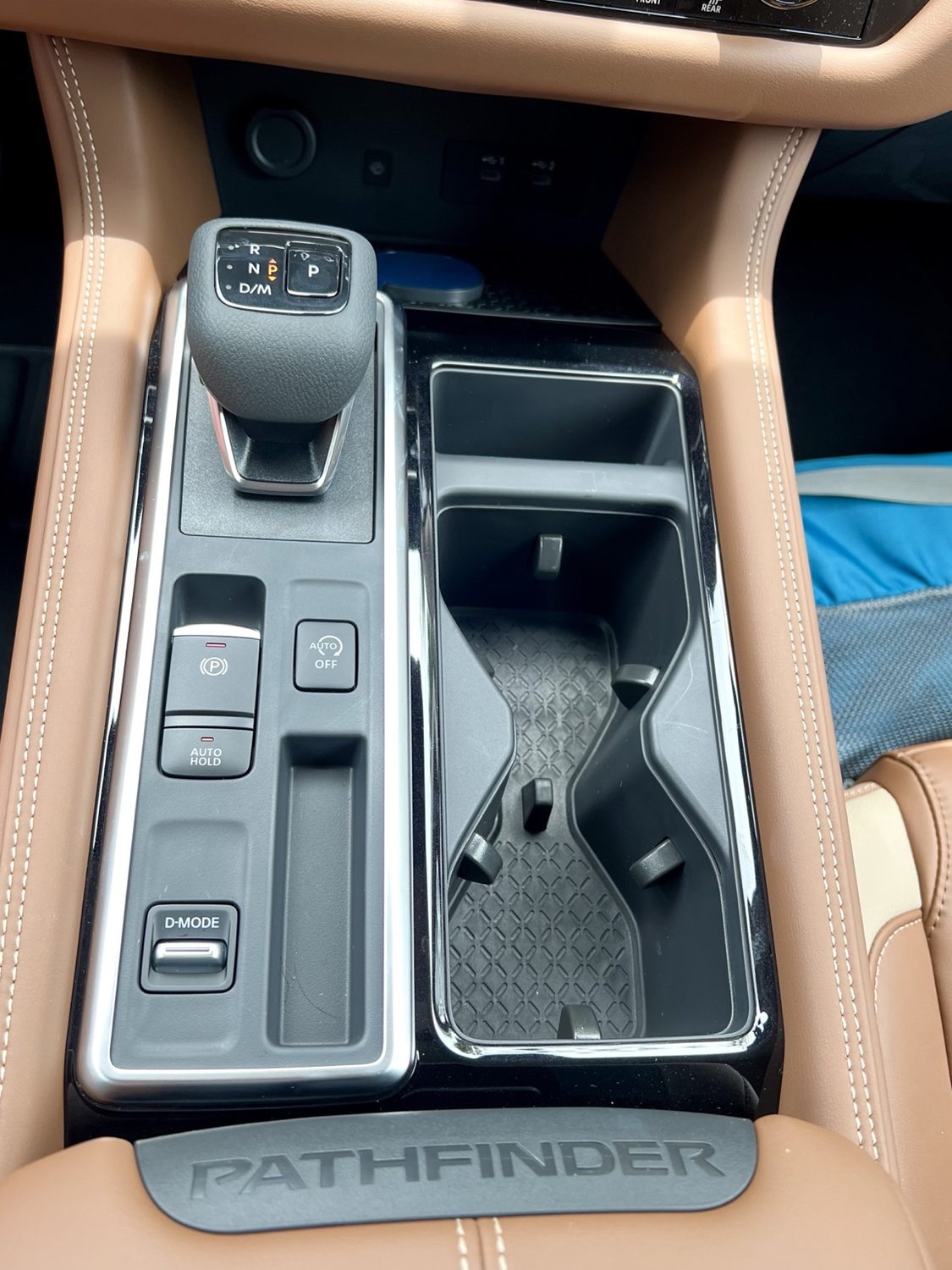
Pull to apply. Press while holding the brake to release. Always confirm Park/brake status before leaving.
Keeps the car from rolling after you release the brake. Press the accelerator to move again.
Changes throttle, transmission, steering, and assist behavior. This FWD Platinum is a paved-road SUV, not a trail toy.
04 / Driver cockpit
Steering wheel & instrument panel
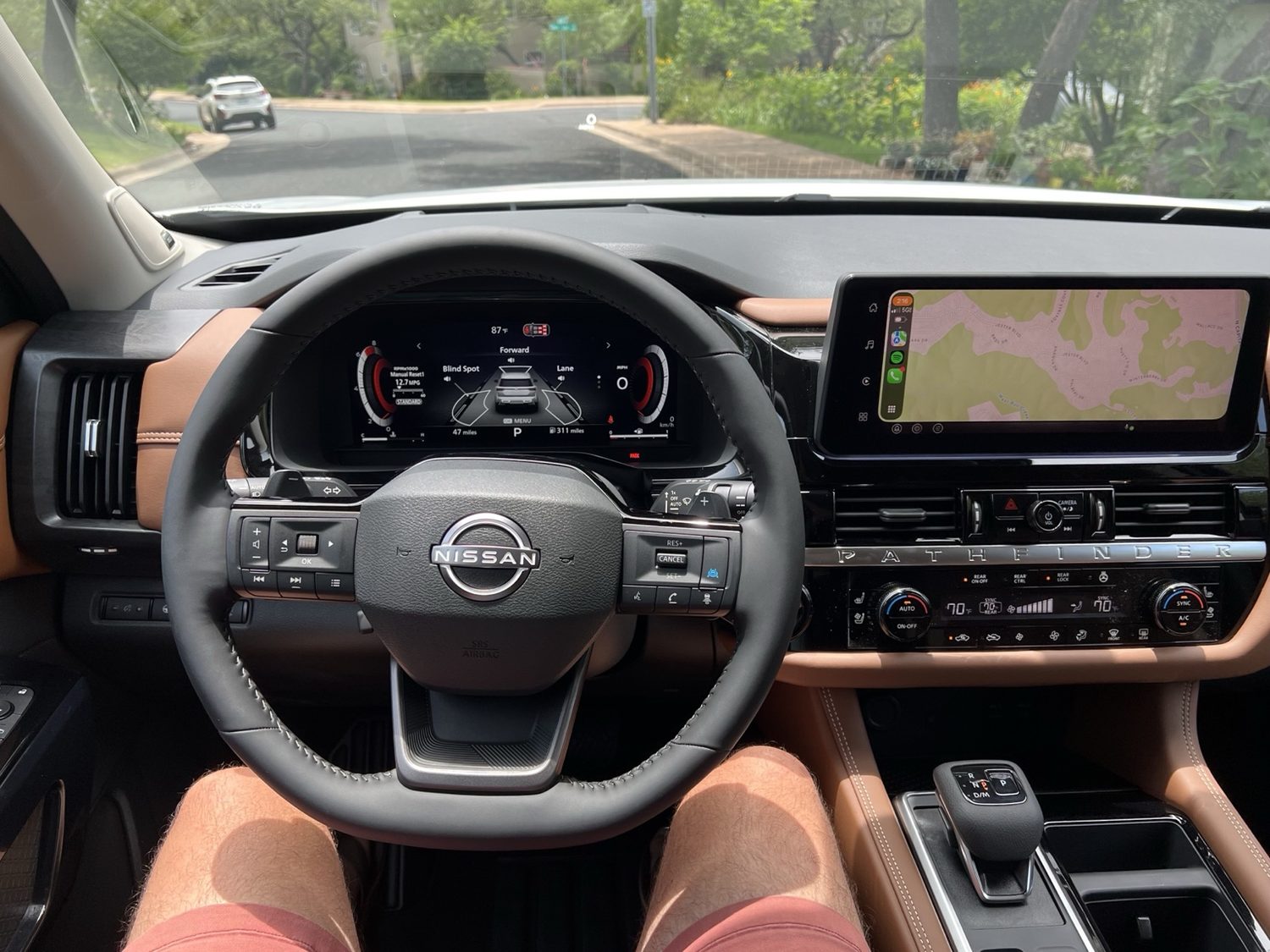
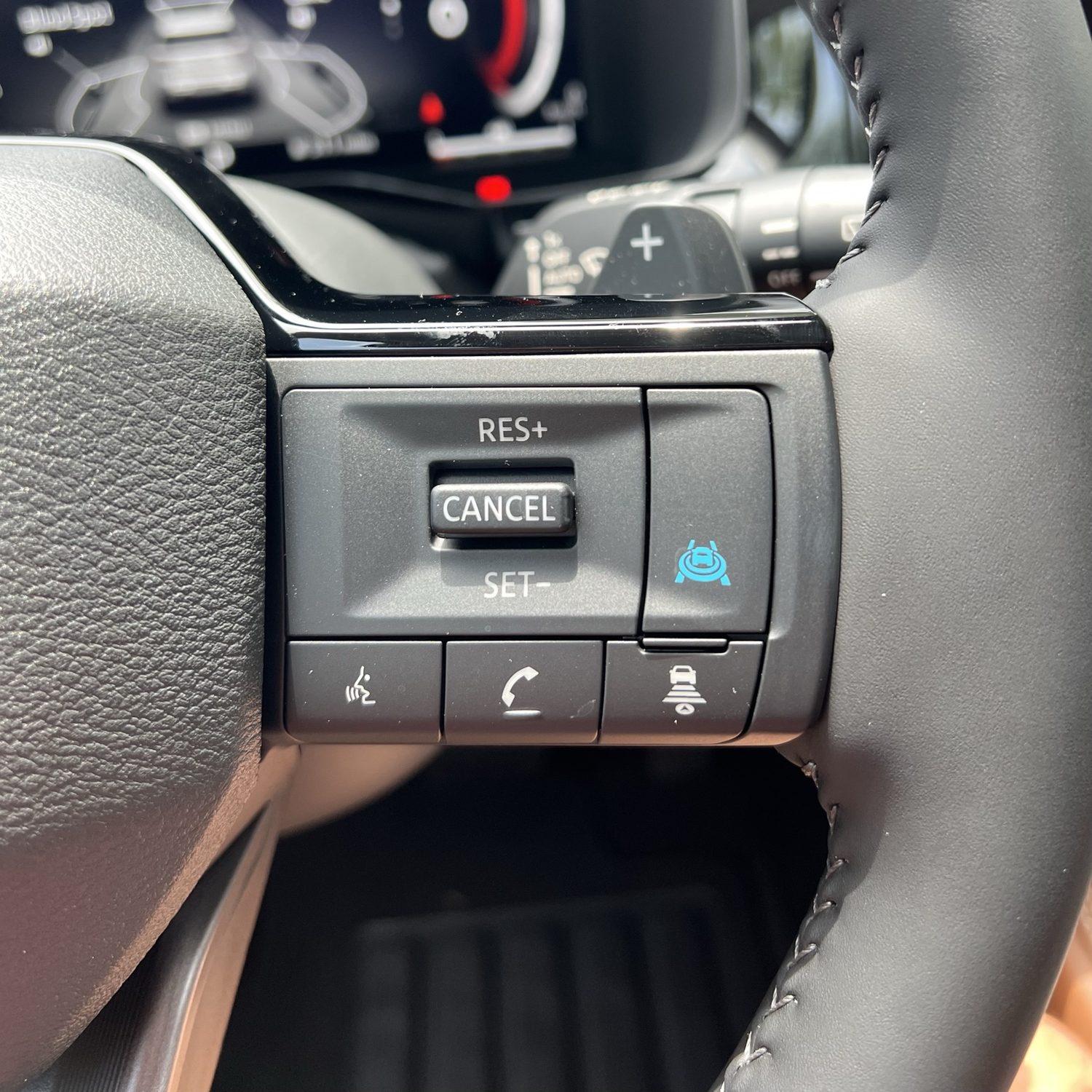
The steering wheel controls more than just the direction of travel. Even you can learn what all the buttons do!
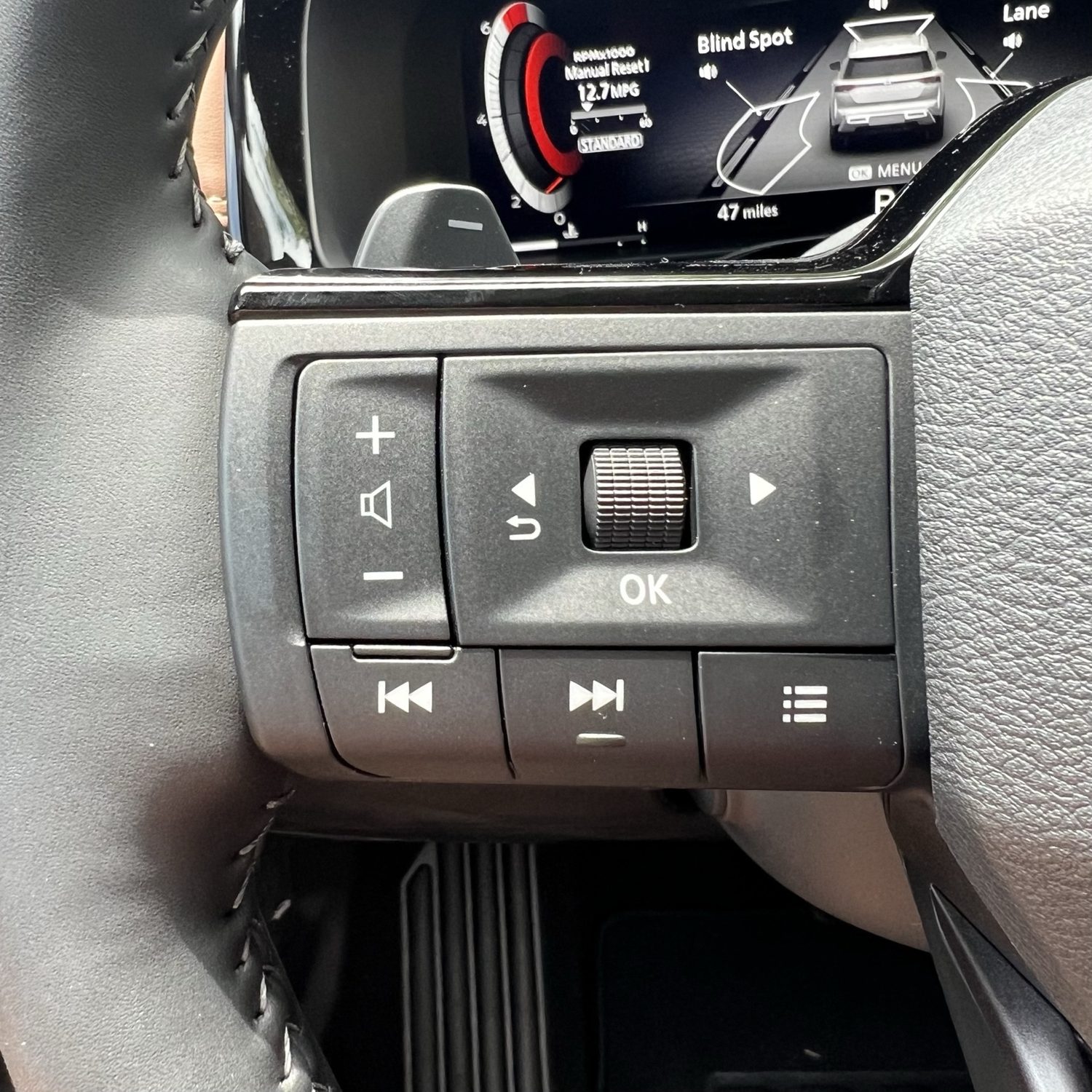
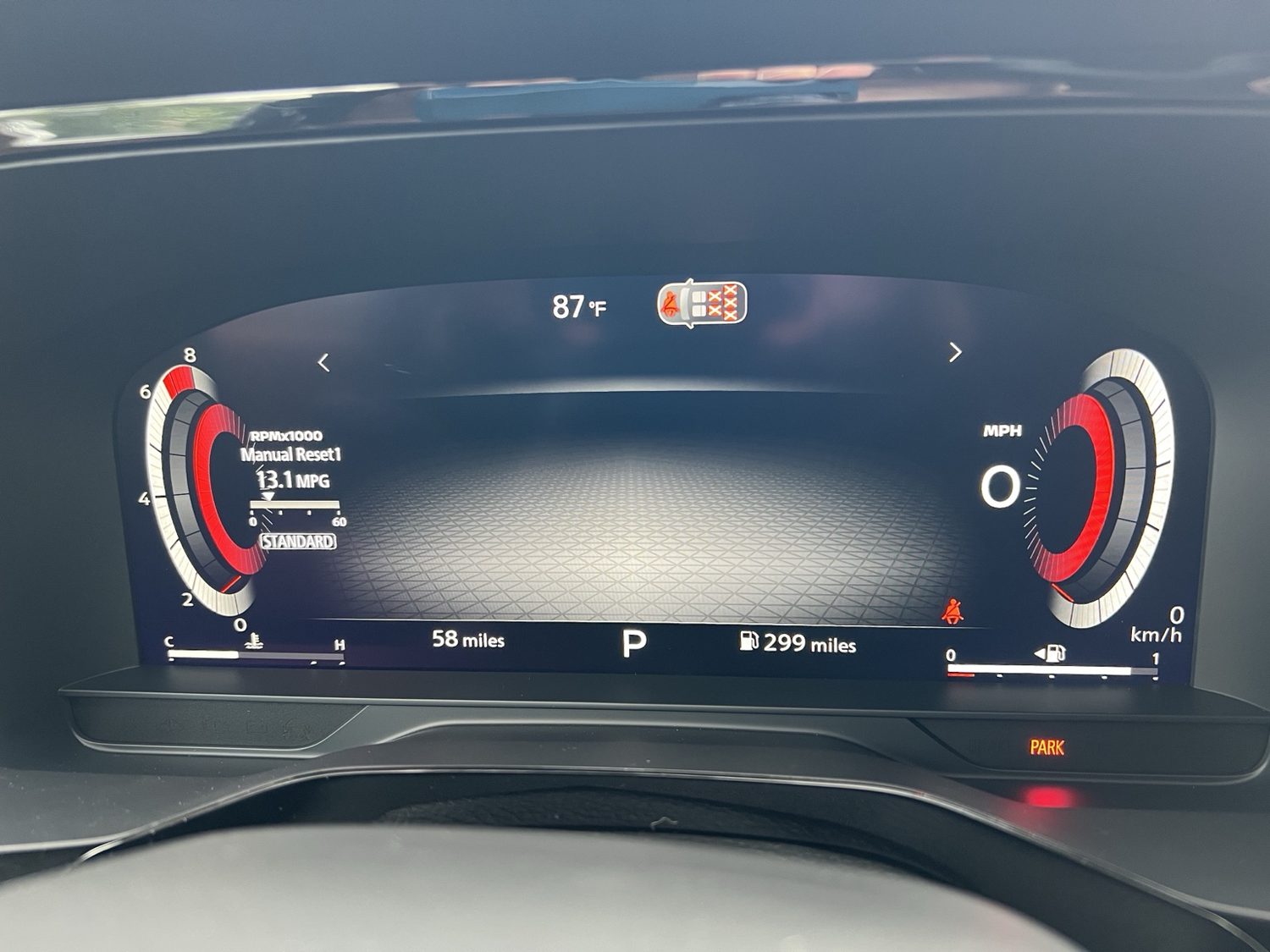
Shows trip info, speed, navigation/audio prompts, tire and vehicle info, driver-assist status, warnings, and settings. You can cycle through the views here with the left-side buttons. Additional options in settings.
Look here for Steering Assist, Lane Assist, Blind Spot Assist, Emergency Brake, Speed Limit Sign, and Parking Aids.
05 / Screens
NissanConnect, phone, settings
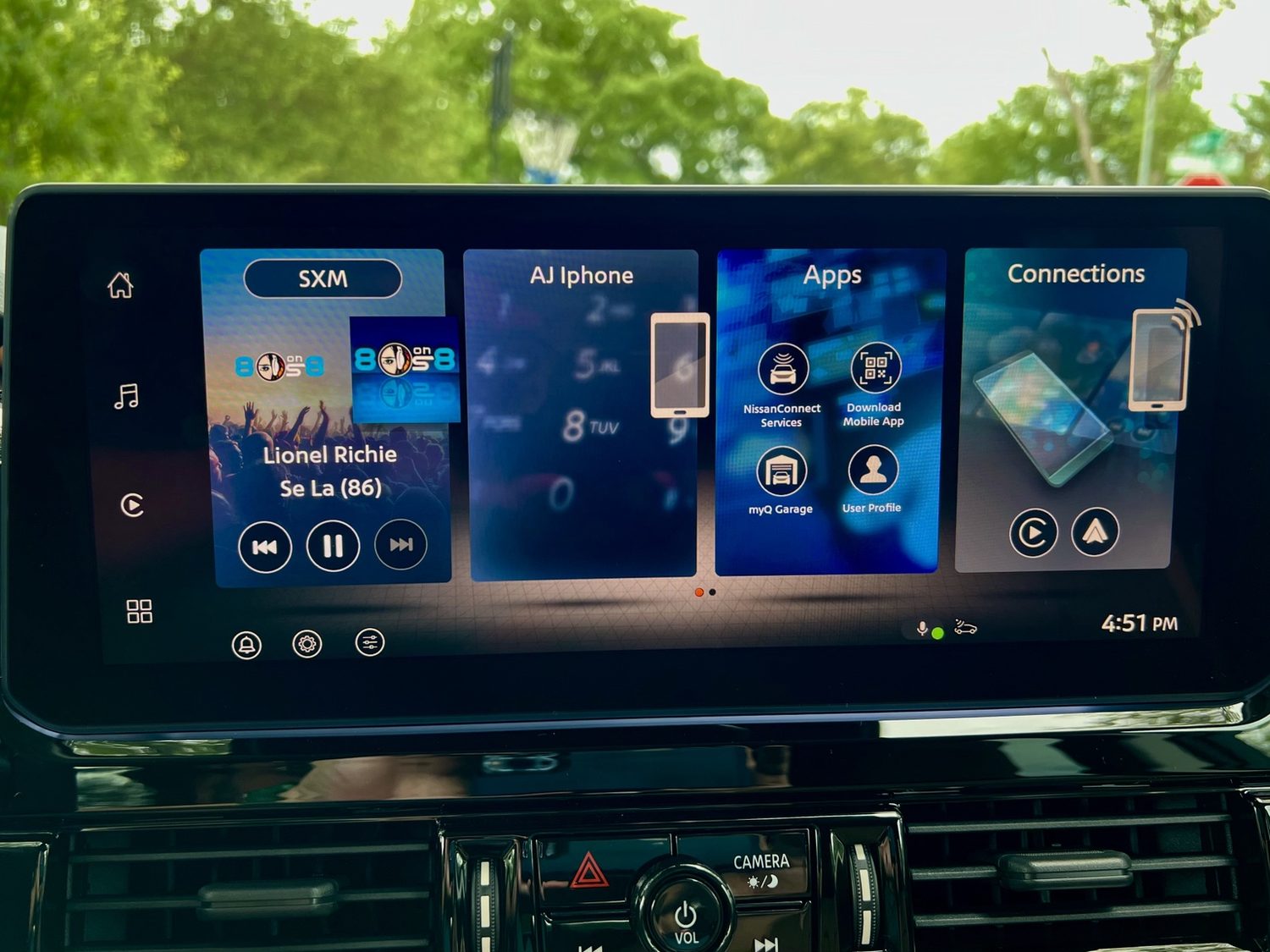
There are two worlds where settings can be, uh, set: the center touchscreen and the driver display. Weird? A little. Survivable? I mean, I hope so.
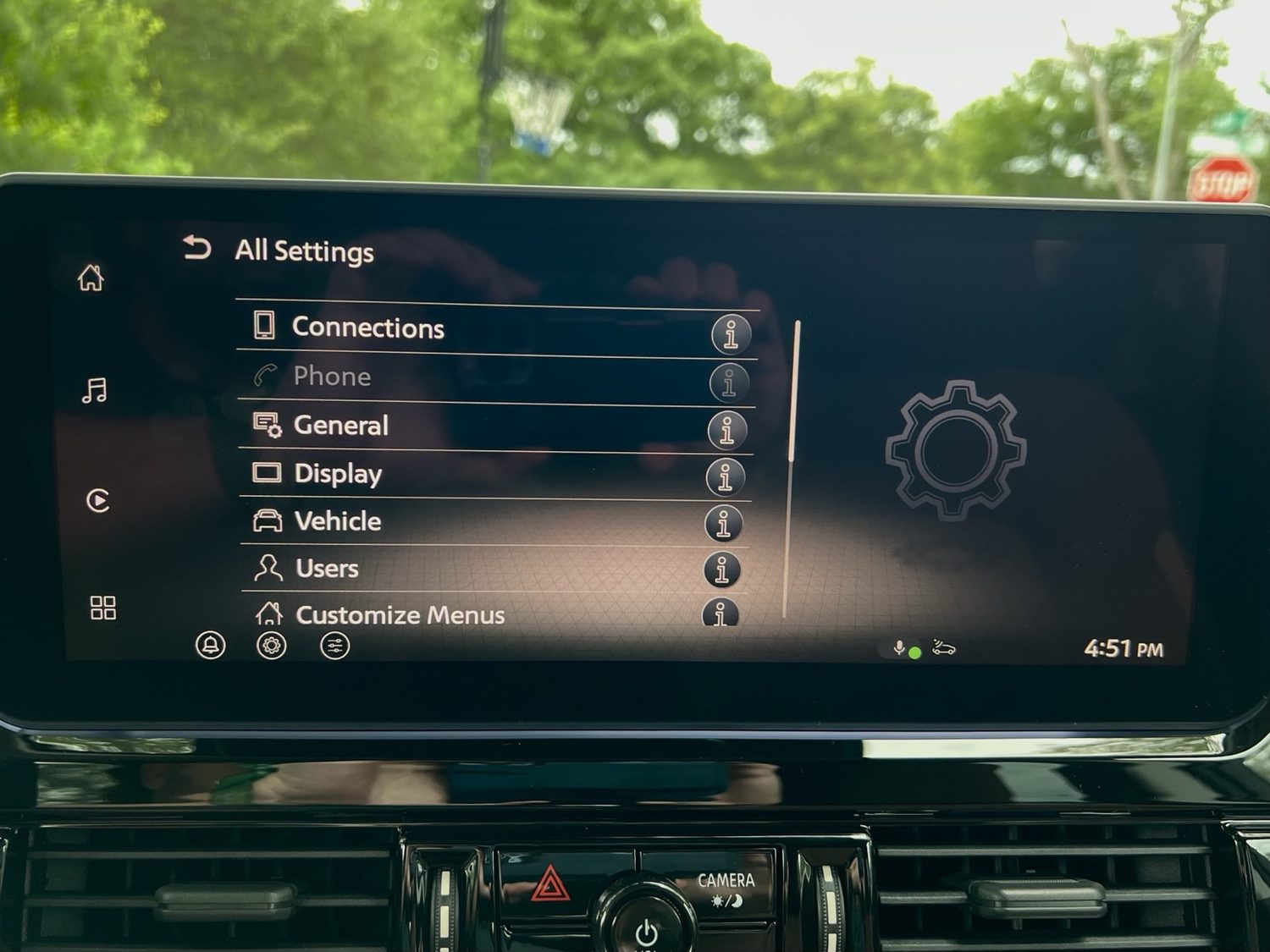
Start with the gear icon
The useful zones are Connections, Phone, General, Display, Vehicle, Users, and Customize Menus. If a car behavior is not there, check the driver display settings.
Pair the main phone first, approve contacts/favorites if desired, then assign or create the user profile. When multiple phones are paired, confirm which one owns calls and media.
Built-in navigation matters
Phone maps may be easier day to day, but ProPILOT Assist with Navi-link relies on the vehicle's built-in route data for its route-aware behavior.
It's a little weird, but once you set it up with your Google account, then you'll have maps and other stuff accessible, even without CarPlay. For what that's worth.
Voice and chimes
Use the steering wheel voice button for voice commands or Siri access. Keep safety chimes loud enough to cut through the steamy audiobook action.
06 / Cabin comfort
Climate, heat, visibility
AUTO climate is the set-it-and-stop-fussing option. The car is better at managing fan speed than a mildly irritated human.
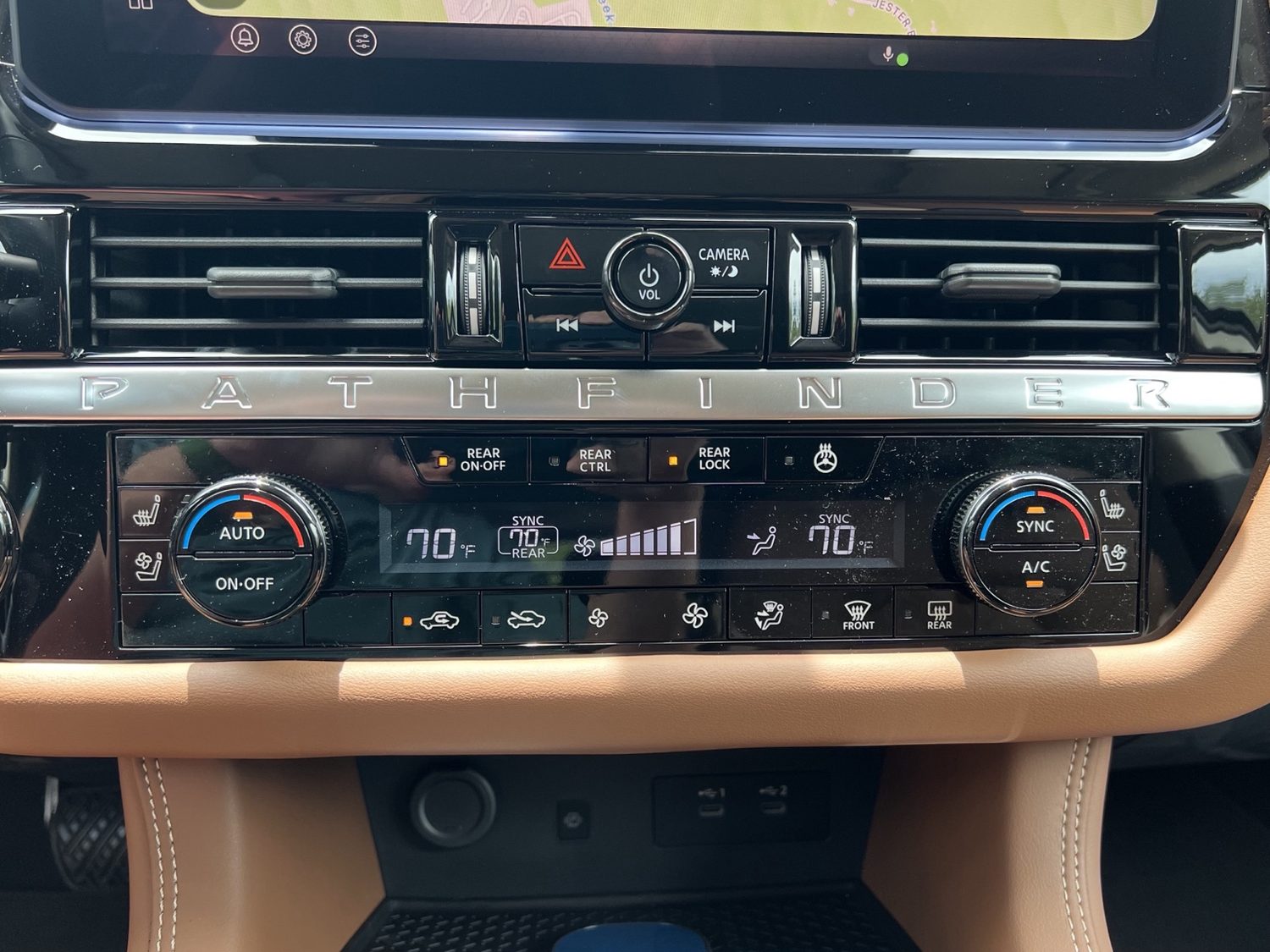
Press AUTO, choose a temperature, and use SYNC when both front zones should match.
Front defrost prioritizes the windshield and may turn on A/C and outside air automatically. Rear defrost also heats the outside mirrors.
The heated steering wheel button is in a weird place, but it'll keep your hands toasty when it's on. Note that it only works when it's cold outside.
You've got heated and ventilated seats, bringing a new meaning to "hot boxing" the car.
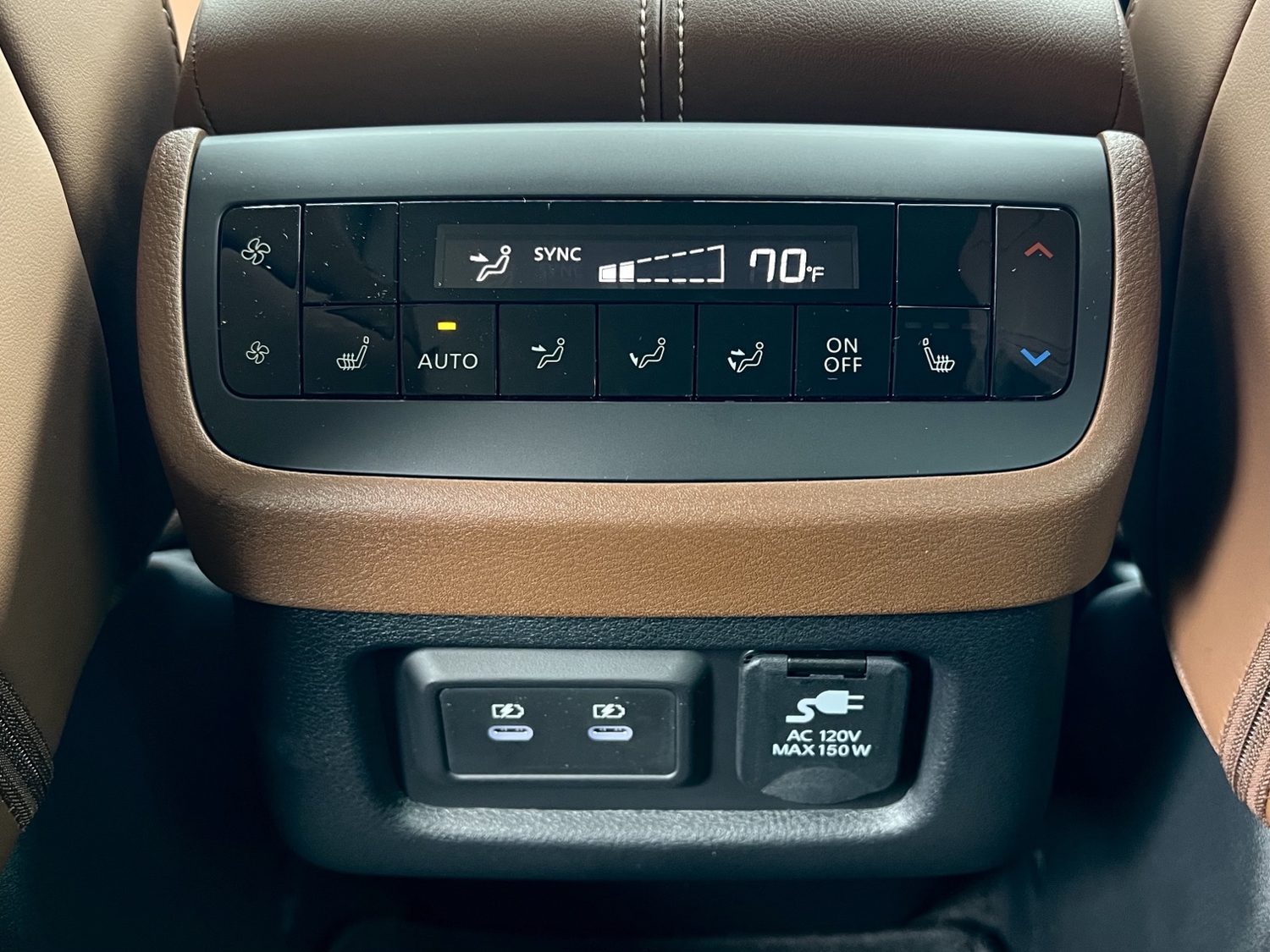
The children need A/C, too, and they have their own climate zone. Press REAR CTRL and turn the dial to choose a temp for them. Press REAR LOCK to prevent them from changing it themselves.
07 / People and stuff
Seats, windows, cargo
Captain's chairs make the second row feel civilized. The cargo area is flexible enough for errands, luggage, emergency bins, and the occasional "why did I buy this much?" haul.
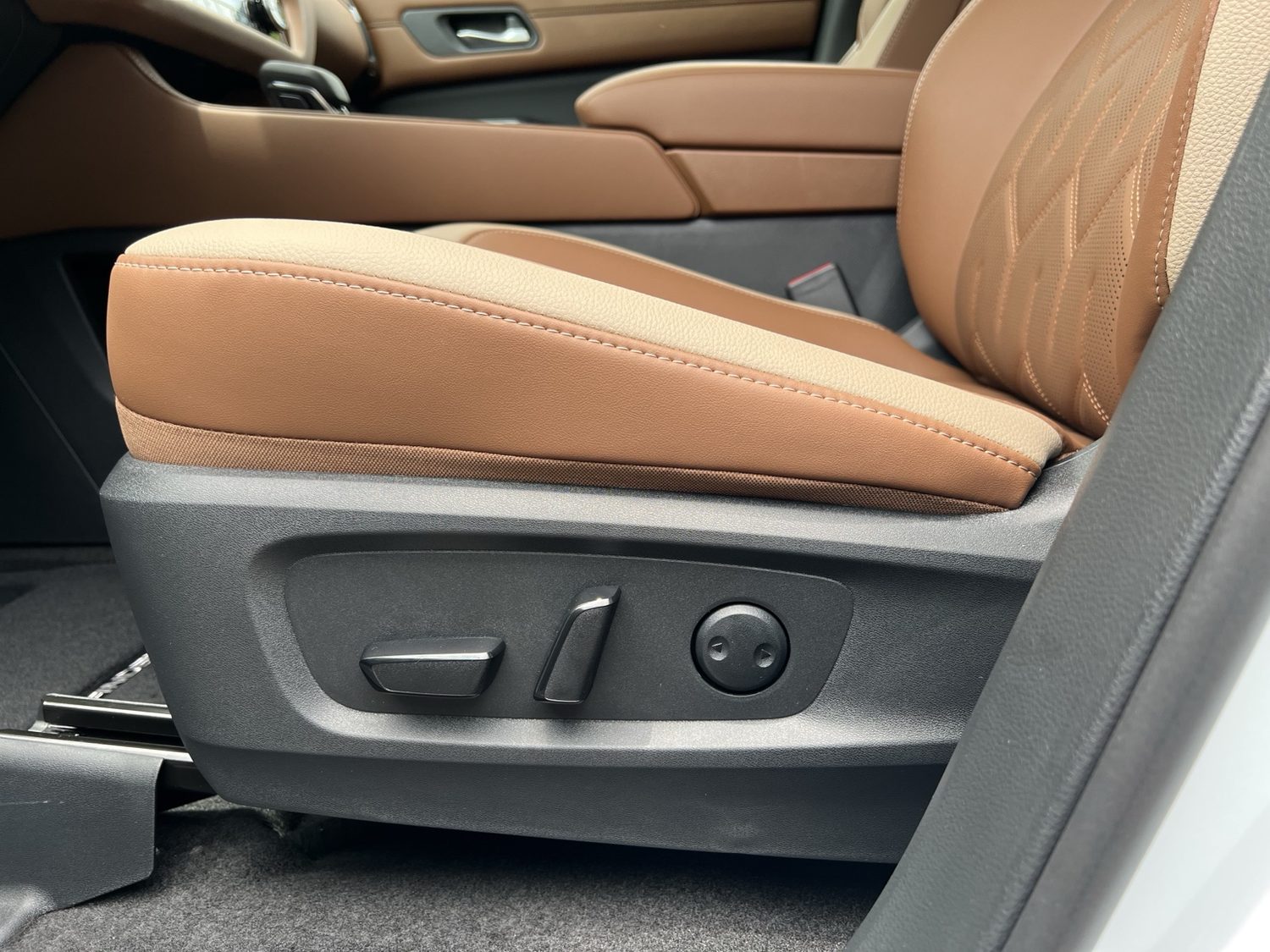
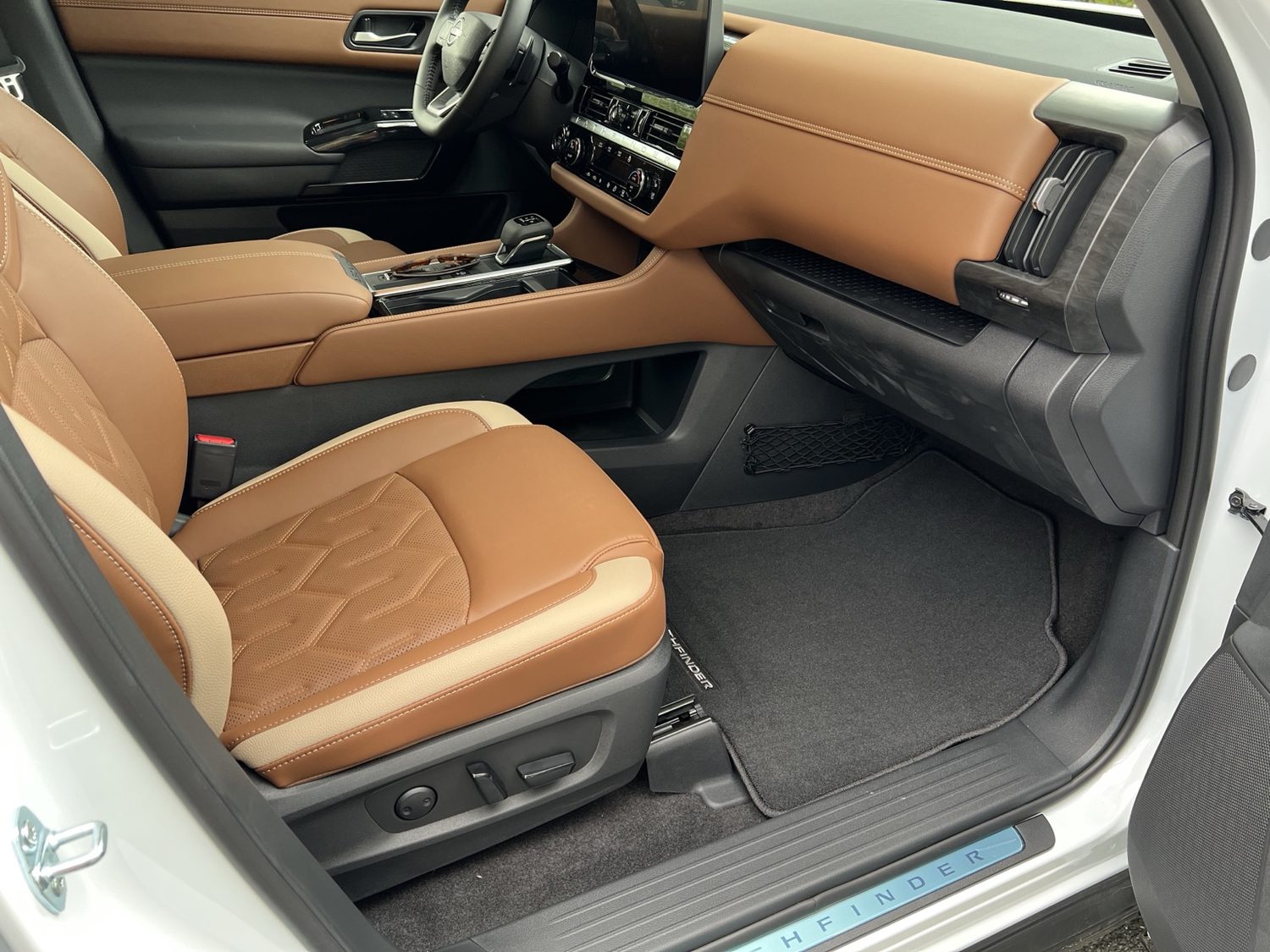
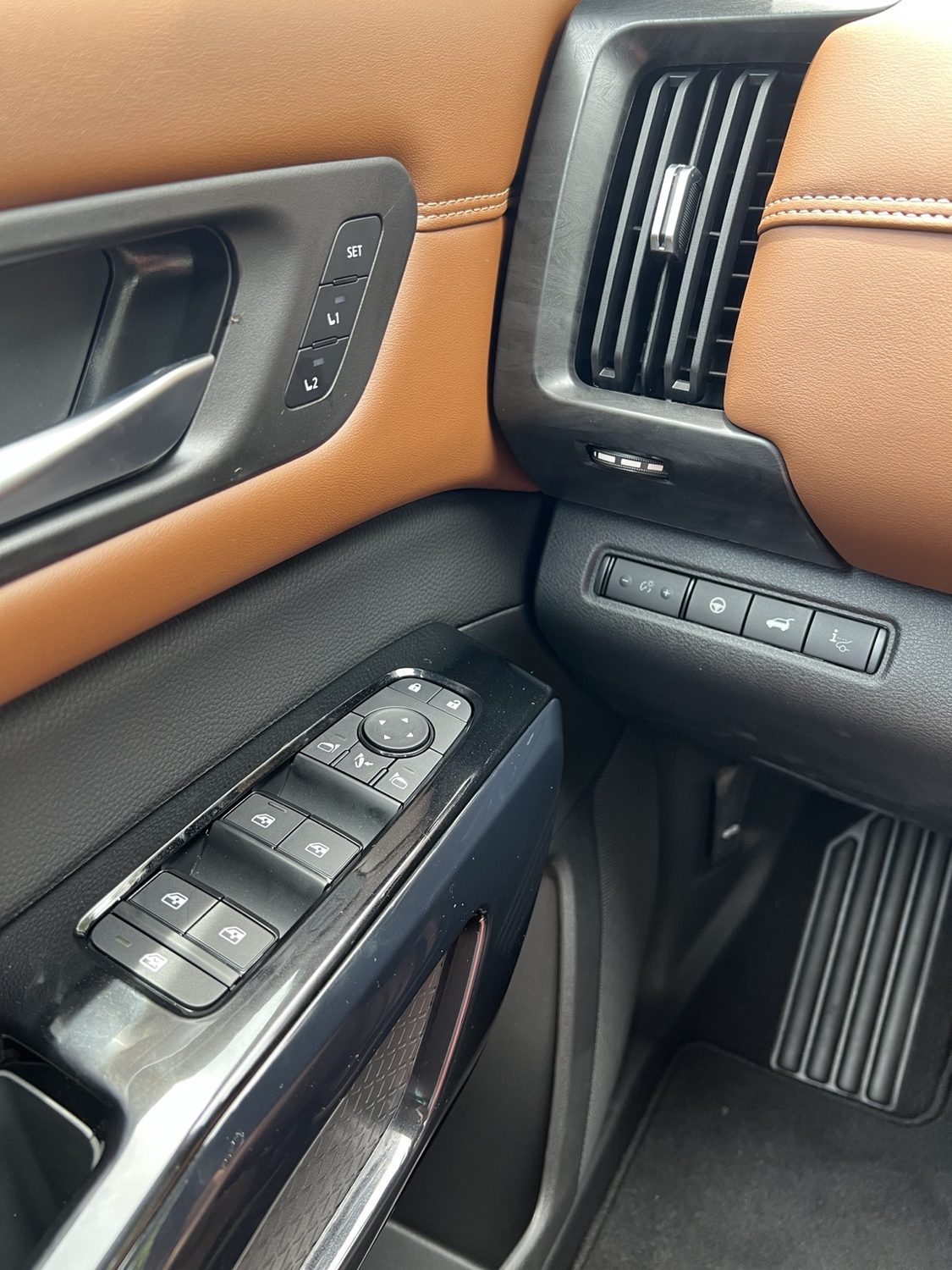
Adjust seat, mirrors, and steering wheel. Press SET, then 1 or 2. Link the position to your specific key/profile, and the car will return to position when you enter.
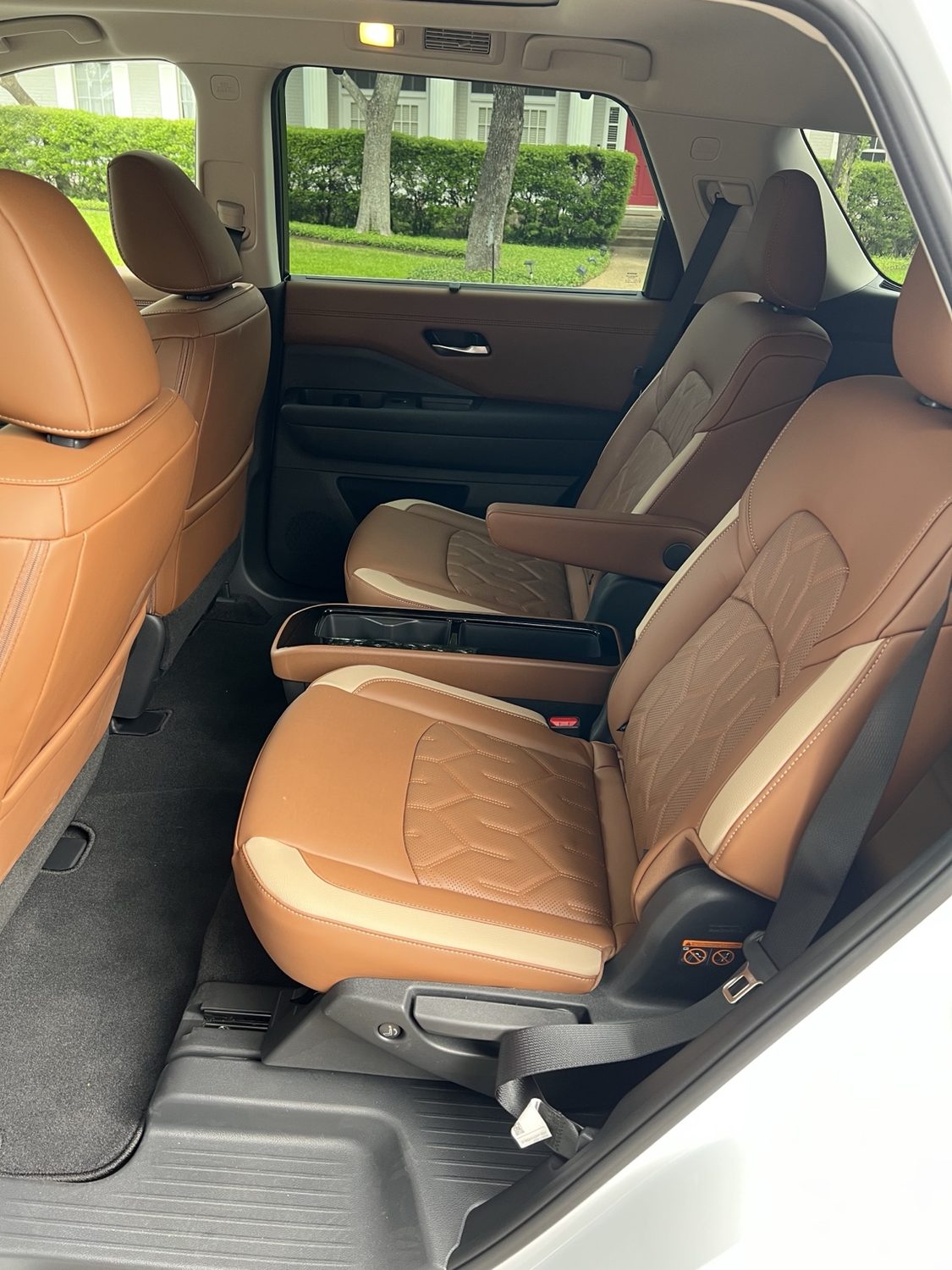
Press the button on the lower side of each second-row chair to have it electronically hop up and forward, giving easy access to the third row.
Pull the lever to adjust the tilt of the seatback.
Both middle seats can be folded flat; just get the headrest out of the way or move the front seat up enough.
Each chair has its own belt, head restraint, armrest, heat control, and fold/slide access. Keep tracks clear so they move cleanly.
Fold seatbacks from the cargo area using the release straps/handles. Confirm they lock before carrying passengers.
Rear side-window shades help with heat and glare. Guide them down instead of letting them snap back like they owe you money.
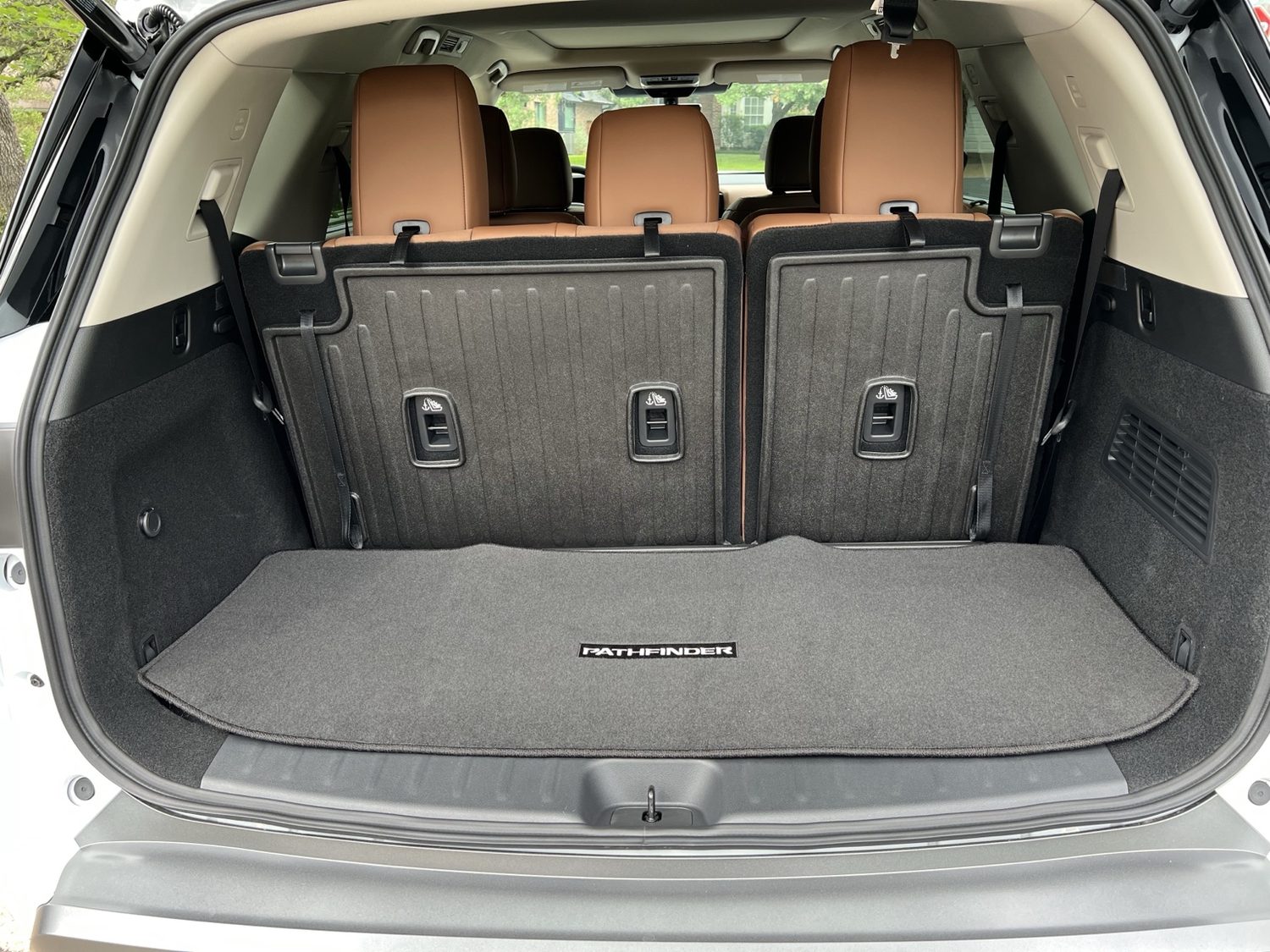
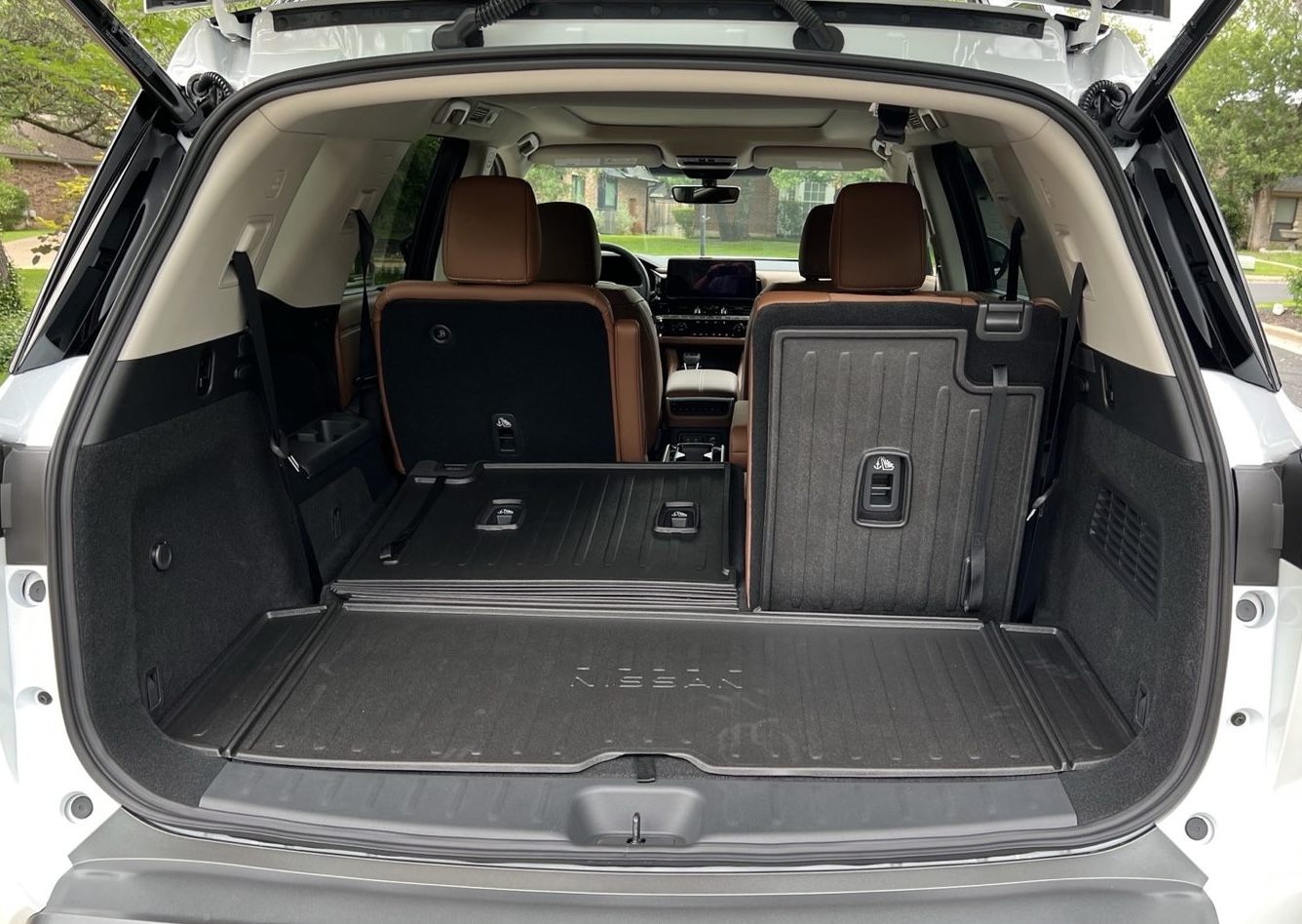
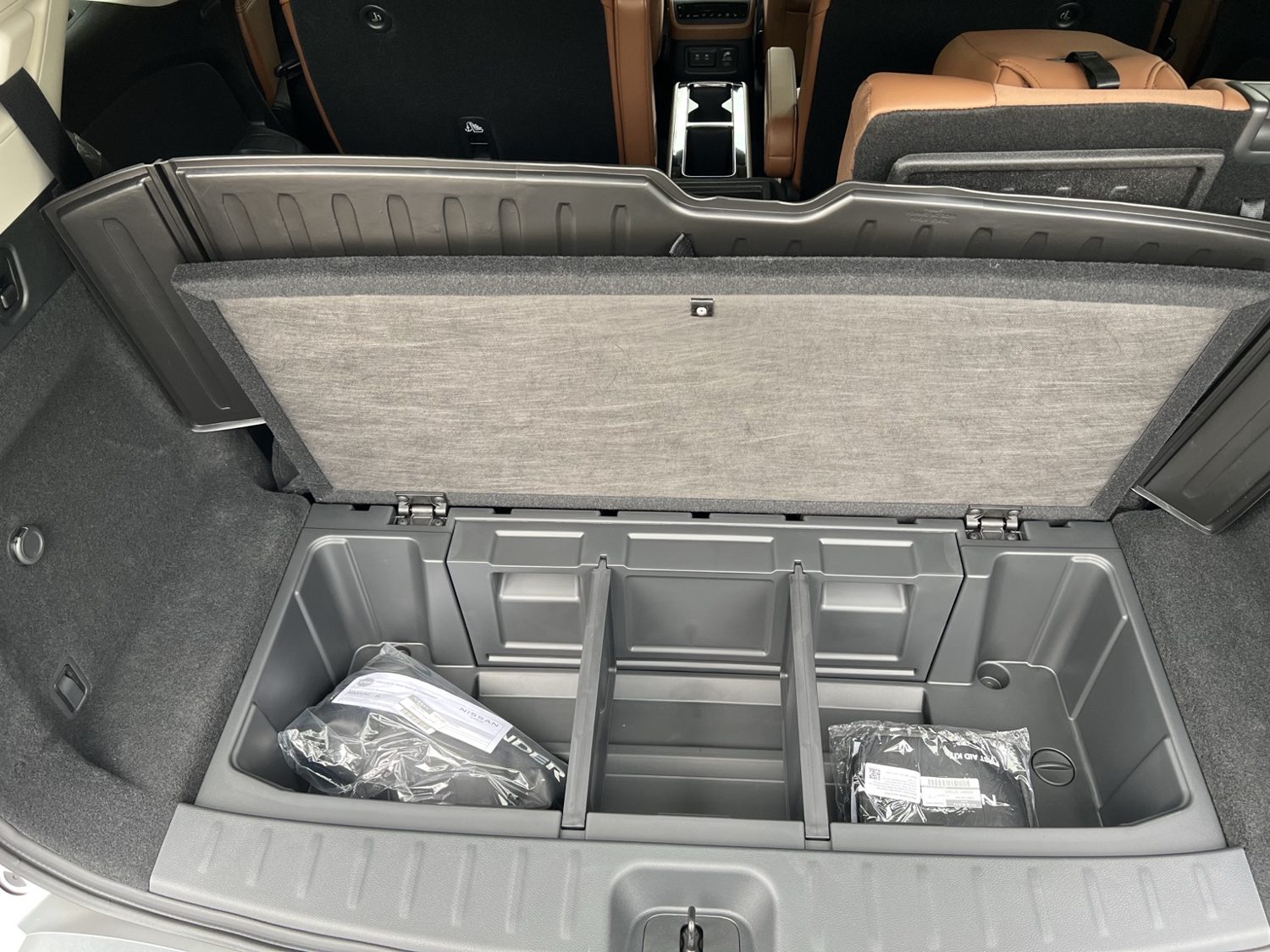
Cargo rule
Do not stack loose cargo above the seatbacks unless it is secured. A flying object in a hard stop is not a personality trait.
08 / Help, not autopilot
Driver assist and parking
ProPILOT Assist is best understood as fancy highway cruise control: it can manage speed, following distance, and some lane-centering help, but you are still the driver. No naps. No makeup touch-ups while driving.
Use it where it makes sense
Use ProPILOT/Intelligent Cruise Control on suitable highways or steady traffic, not messy city driving, construction zones, sharp curves, bad weather, unclear lanes, or anywhere you would not trust the car to make gentle speed and steering corrections.
Use Intelligent Cruise Control
Intelligent Cruise Control is the speed-and-distance part of ProPILOT. It tries to hold your set speed when the lane ahead is clear, then slows down to follow a vehicle ahead at the gap you choose.
- Press the blue ProPILOT button. The system is on, but not set yet.
- Drive to the speed you want and press SET-.
- Tap RES+ or SET- for small speed changes; hold either one for bigger changes.
- Press the distance button to cycle long, middle, and short following gaps.
- Cancel with CANCEL or the brake. Press RES+ to resume the previous set speed when safe.
If it will not set, check the basics: Drive selected, seat belt buckled, doors closed, parking brake off, VDC on, and enough speed or a vehicle ahead to follow.
What happens behind another car
If the vehicle ahead slows, ICC can slow this Pathfinder and hold it stopped. If the stop is brief, it may start following again automatically. After more than about three seconds, press RES+ or lightly tap the accelerator when traffic moves and the path is clear. Navi-link may extend that window on mapped limited-access freeways.
When you take over
Brake if traffic cuts in, stops suddenly, or feels too close. The system is not a panic-braking promise, and it may not react to stationary or very slow objects the way a human should.
Lane-centering help, not self-driving
Steering Assist works with ICC when lane markings are clear. It can help keep the vehicle centered, but it expects your hands on the wheel and your brain in the building.
Watch the driver display: green lane/steering indicators mean the system is actively helping; gray means standby or not enough lane information. If the car complains about hands off, grip the wheel normally.
Why built-in navigation matters
With built-in navigation route data, Navi-link can support route-aware behavior on certain limited-access freeways, including speed-limit assist and smoother speed adjustment near some curves, junctions, or exits.
Treat it as polish, not permission. You may still need to brake, steer, or ignore a suggested speed change.
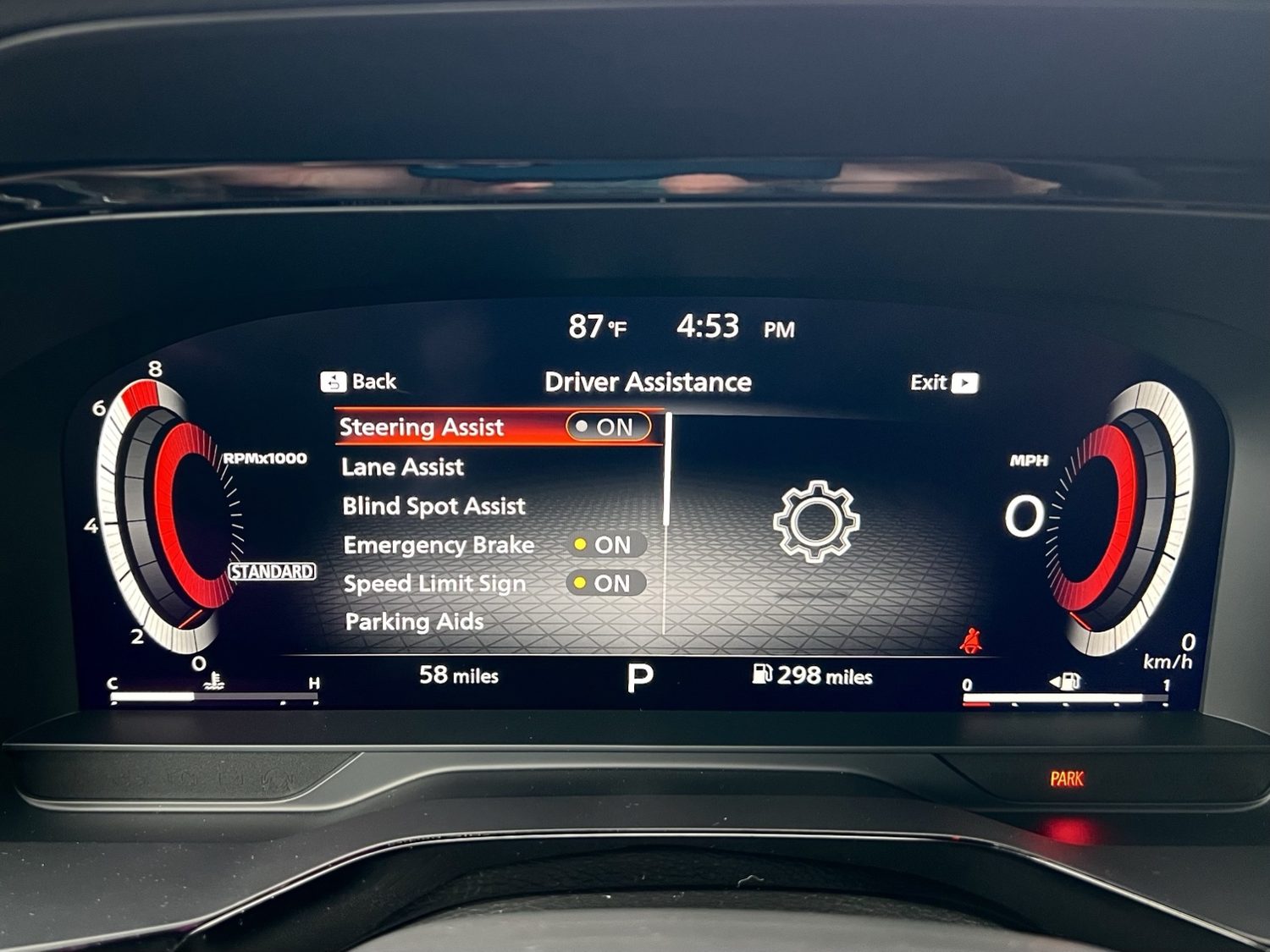
Where the toggles live
Use the driver display's Driver Assistance menu for Steering Assist, Lane Assist, Blind Spot Assist, Emergency Brake, Speed Limit Sign, and Parking Aids. Some choices are warnings only; others can add a small intervention.
- Blind Spot Assist Warns about vehicles in adjacent lanes and may help discourage a lane change. Still look. Mirrors remain employed.
- Lane Assist Warns or nudges when the car drifts and lane markings are clear. It gets less useful when the paint disappears.
- Emergency Braking Can warn and may brake for some forward hazards. Leave following distance like a person with insurance.
- Rear Cross Traffic Helps when backing out, but may miss pedestrians, bikes, angled traffic, or vehicles hidden by neighboring cars.
- Speed Limit Sign Displays recognized speed info and may support speed-limit assist. Posted signs and judgment still win.
- Sensors and cameras Dirt, ice, rain, fog, glare, worn markings, weird road geometry, and blocked radar/cameras can make the systems temporarily dumb.
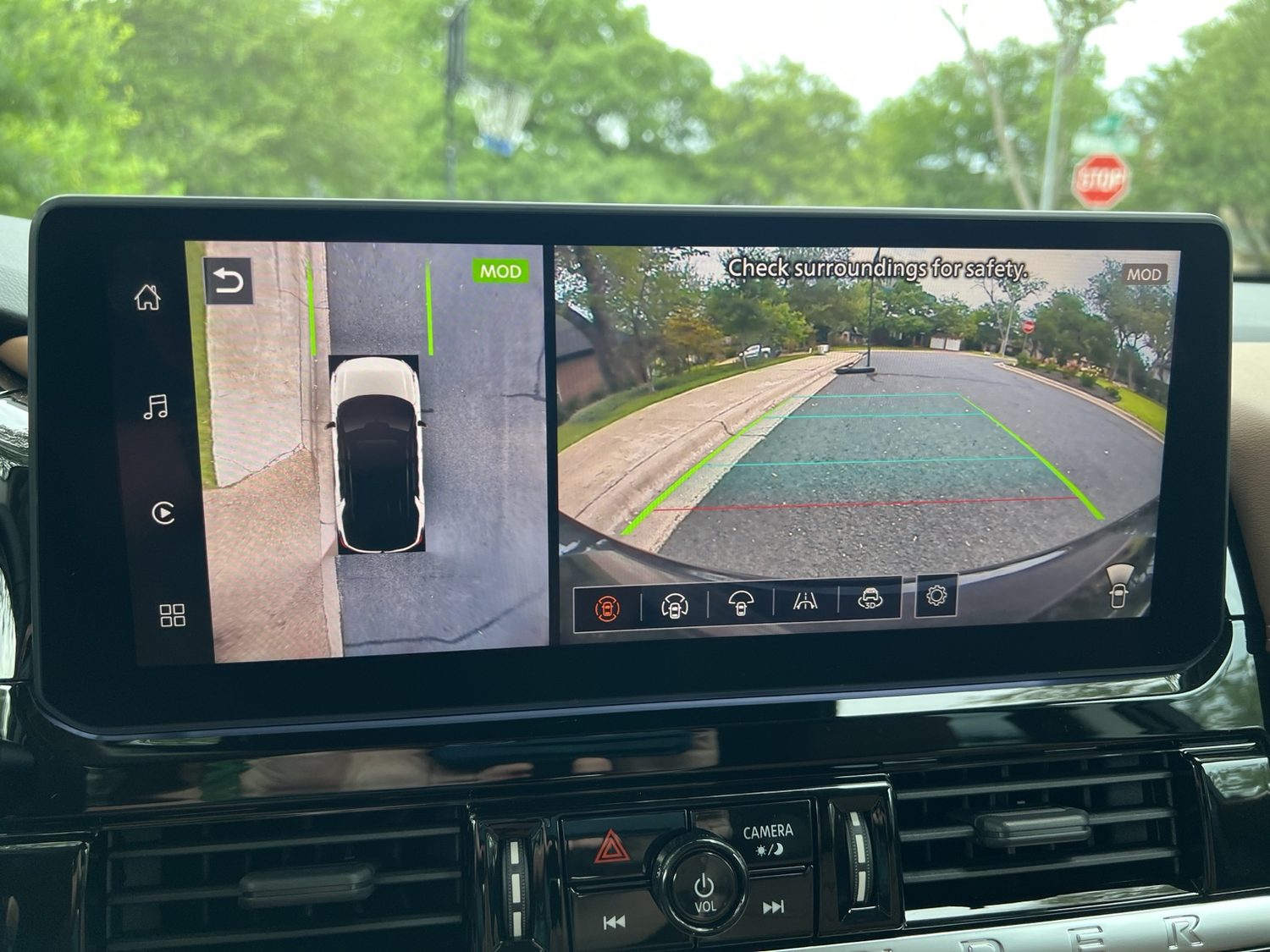
Press CAMERA before things get spicy
Shift to Reverse or press CAMERA to bring up the camera views. Use it for curbs, garage walls, parking lines, tight front-corner checks, and any moment where guessing feels unnecessary.
Trust, but verify
The overhead view is stitched together from multiple cameras, so it is great for orientation but not a perfect measuring tape. Parking sensors and Moving Object Detection can miss low, thin, close, fast, or blocked objects. Your mirrors still exist for a reason.
09 / Overhead and outside
Lights, wipers, glass
AUTO handles the easy stuff. The human still handles bad weather, weird visibility, icy wipers, and not pressing SOS for anything short of an actual emergency.
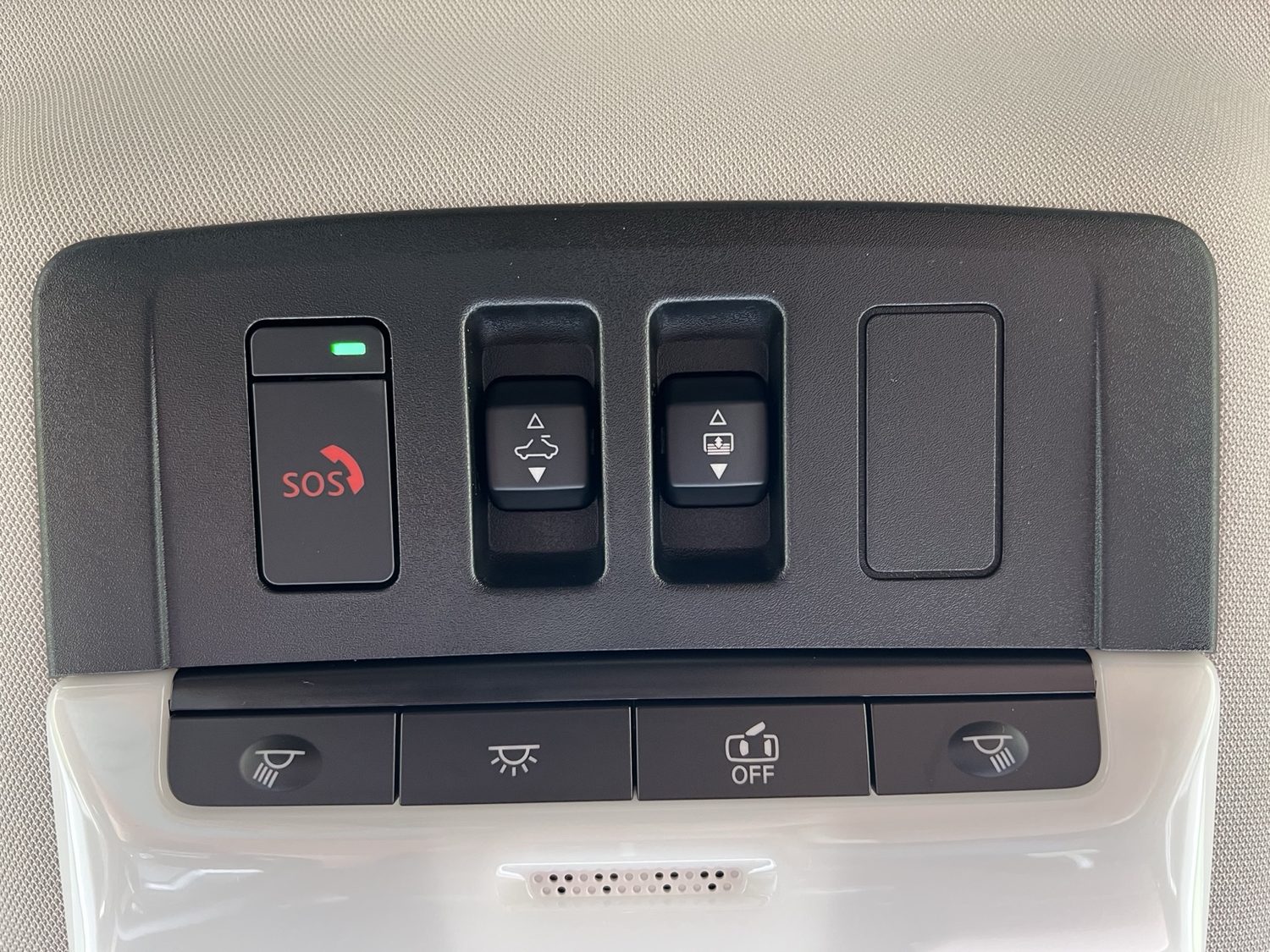
Glass and shade operate separately. Before closing, make sure nothing is in the opening. Do not force operation if iced or blocked.
AUTO is the normal setting. Manually confirm lights in heavy rain, fog, or any situation where ambient light may confuse the system.
The right stalk controls front and rear wipers/washers. Clear ice first and do not run washers on an empty reservoir.
10 / Plug in, pack up
Power, storage, roof bars
The Pathfinder has plenty of places to charge things and hide things. The main trick is not turning the cabin into a junk drawer with seatbelts.
The console area includes USB ports, a cigarette-style outlet, and a wireless charging pad. Remove thick or magnetic cases if wireless charging acts moody.
USB-C ports and a 120V AC outlet rated up to 150W are good for small electronics, not high-draw appliances.
Use the console, under-console shelf, door pockets, seatback pockets, glovebox, cupholders, and underfloor cargo bins. There's no limit to where you can put half-empty yogurt containers!
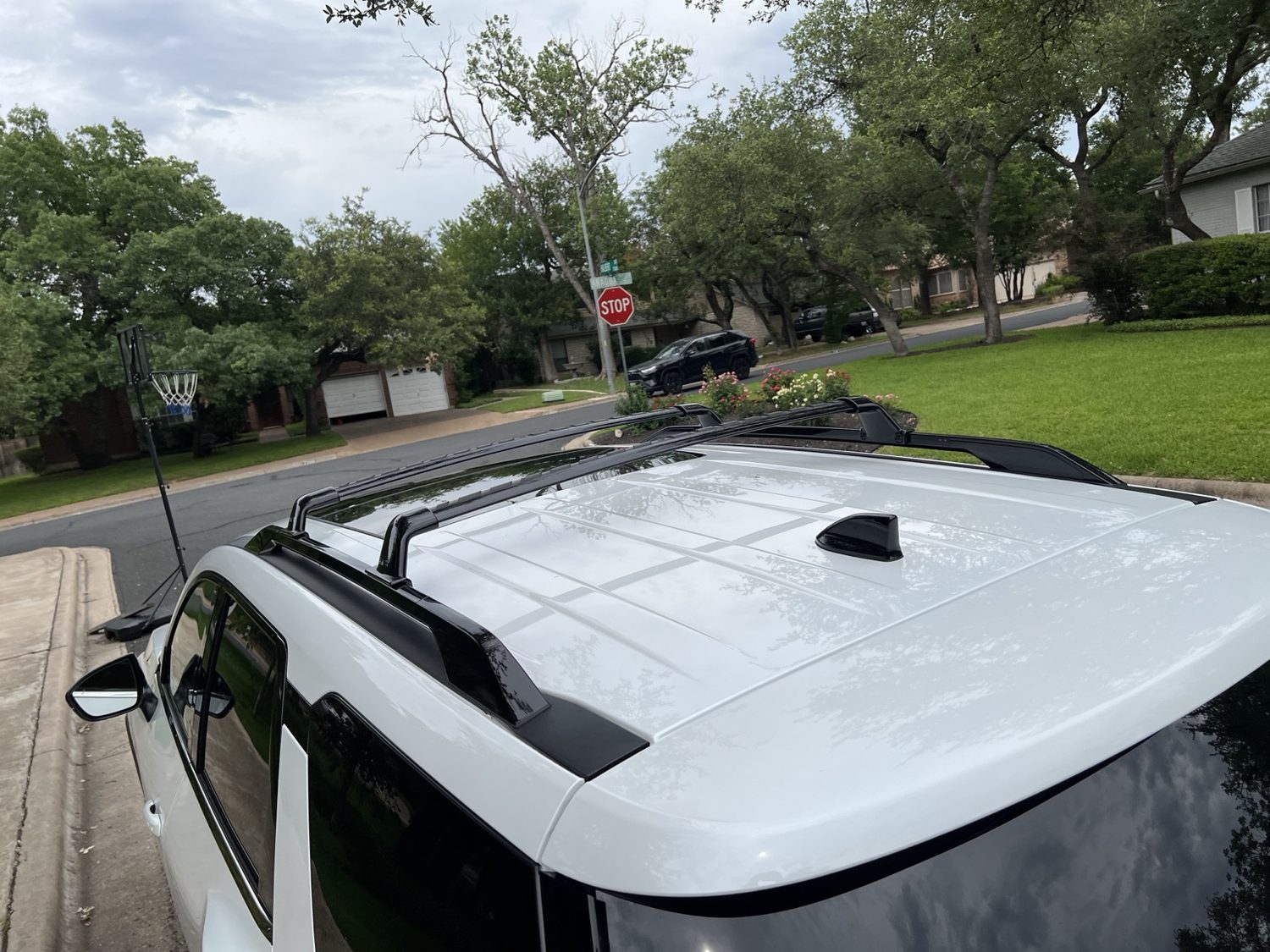
Use the installed crossbars for roof cargo, not the rails alone. Distribute weight evenly, strap loads properly, expect wind noise, and use a step stool so cargo does not drag across paint or glass.
As if you could ever put something on the roof yourself.
11 / Keep it nice
Leather, screens, wheels
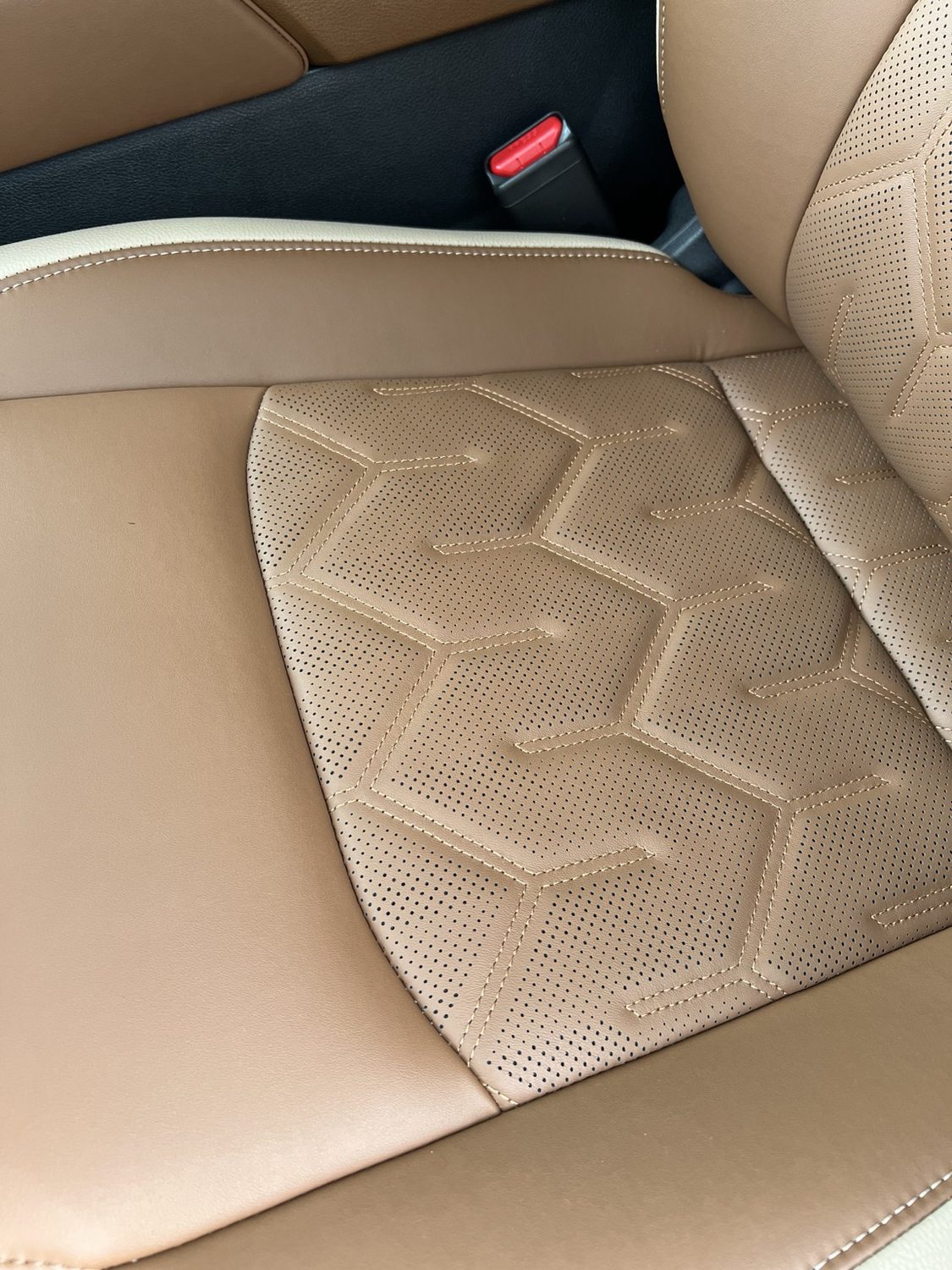
You wanted these fancy brown seats. Keep stuff off them, including food, lotion, and cleaners.
Vacuum grit promptly, before it settles into the seams and cracks. Wipe spills with a clean dry or lightly damp soft cloth. Use mild automotive leather cleaner approved for coated leather, test first, and avoid soaking perforated areas.
Skip harsh cleaners, saddle soap, ammonia, solvents, oils, polishes, aggressive scrubbing, and mystery protectants with suspicious confidence.
Use clean screen-safe microfiber, not Kleenex or paper towels. Do not dry-wipe dusty gloss trim or use cleaners that can haze coatings.
Don't go through regular car washes. Touchless washes only, so you don't scratch up the black plastic bits and swirl up the fine detail work I intend to apply to the sparkly white paint.
Nissan recommends gentle wheel cleaner, thorough rinse, light water-based tire dressing, and extra curb clearance.
12 / Safety basics
Belts, airbags, sensors
This is the short version: sit correctly, keep deployment zones clear, and remember that sensors help until weather, dirt, glare, or physics decide otherwise.
- Seat belts Sit upright. Lap belt low across hips. Shoulder belt across chest and shoulder. No tucking, twisting, or reclining like a chaise.
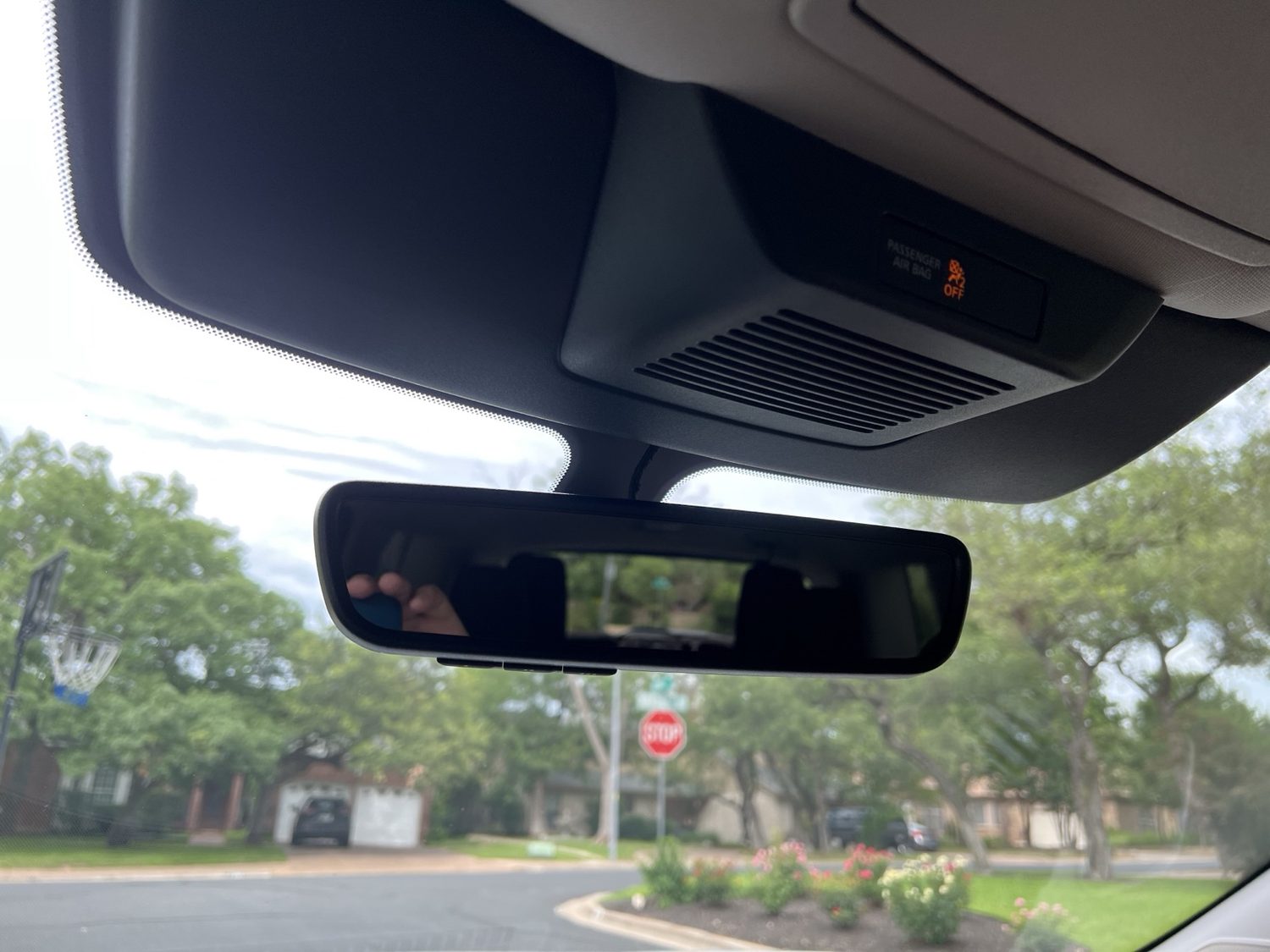
- Airbags There are airbags all over this damn thing. No feet on the dash, unless you want to kick yourself in the face at the speed of light.
- Passenger sensor Heavy objects or water on the passenger seat can confuse or damage occupant sensing. The seat is a seat, not a loading dock.
13 / Pocket reference
Easy to miss
The tiny features that quietly make the car easier to live with. These are the ones worth remembering.
Not just for Reverse. Use it for curbs, garages, front corners, and parking lines.
The liftgate lock button closes the hatch and locks the car when the key walks away with you.
Excellent in traffic. Annoying in car washes and tight garage creeping. Toggle accordingly.
Use REAR LOCK when you want to manage the whole cabin from the front climate panel.
User profiles help preserve display, phone, audio, and comfort preferences for each key.
Phone maps are easy, but built-in navigation is what supports Navi-link behavior.
Good for emergency gear, umbrellas, small bags, and things that should not slide around. And your purse if you plan to leave it in the car like a fool.
The 120V outlet handles small electronics up to 150W. It is not a kitchen appliance moment.
Take turns wide, park with extra curb space, and let the camera earn its keep.